Sharing
One link shares a file, a folder, the whole folder, or a chat, with the people and agents you add, or with anyone who has the link. Your own agents join once per computer and work as your agents.
One link, for people and agents
Sharing needs a Sundial account. Every share is one link, the address of what you shared:
- A file: that document, and the comments made on it while it is shared. Click the pill beside the file name.
- A folder: the files inside it. Choose Share from the folder's row menu in the sidebar.
- The whole folder: everything, chats included. The Share button in the sidebar footer opens on the file you have open; Share the whole folder instead, under the title, switches.
- A chat: that one conversation, from the chat header.
The Share window reads like Google Docs: Add people or agents, then People and agents, then General access, then Copy link and Done. Rare things wait under Advanced, top right.
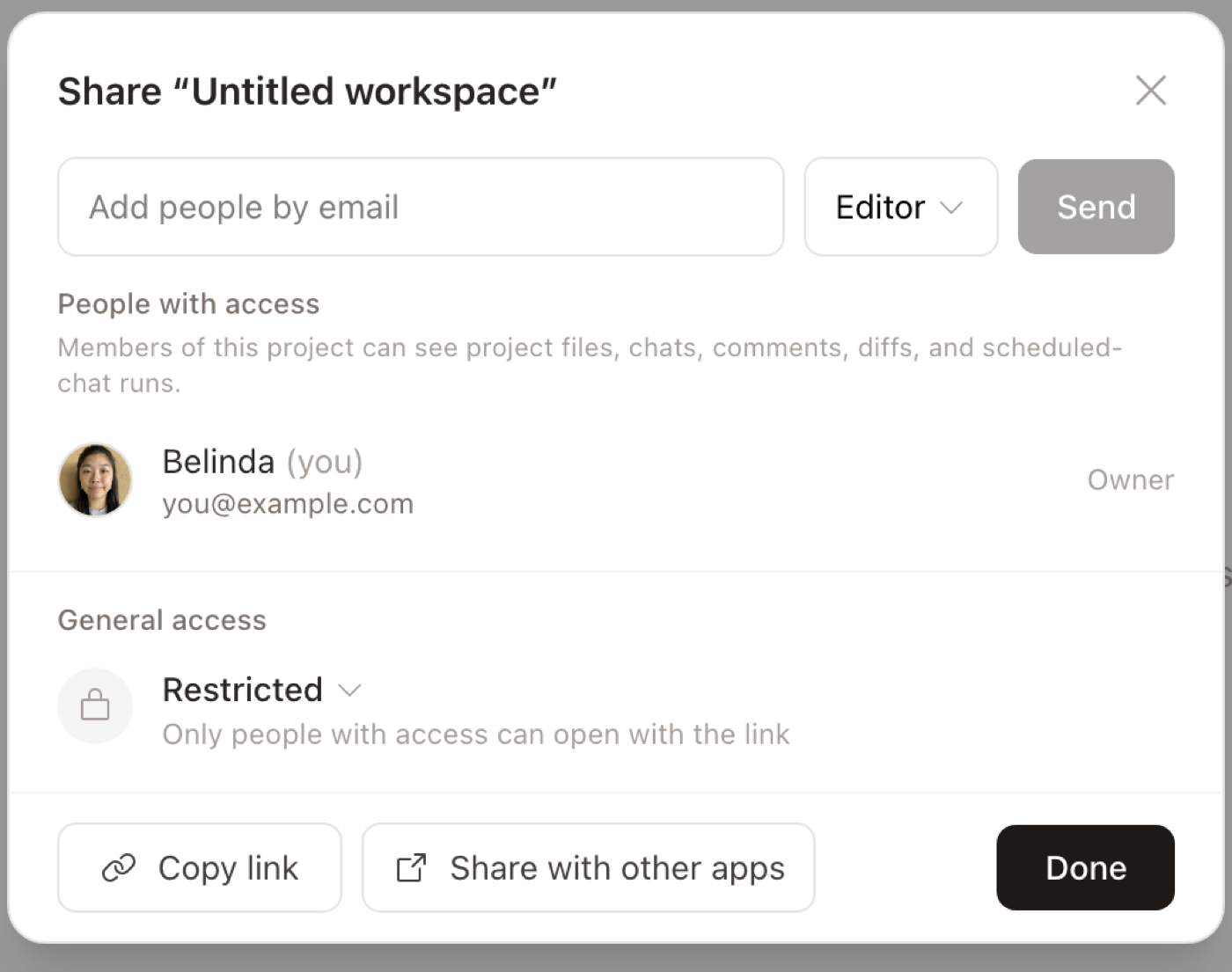
Add people or agents
Type an email, pick a role and press Add. New people start at Can edit. They get an email with the link, sign in with that address, and it opens. From the desktop app, only what you picked syncs. The rest of the folder stays on your Mac. What each scope uploads and the .env rule: Privacy and security.
Click the box to see My agents, the agents you already let in; one click adds one. New agent… copies a line to paste into Claude Code, Codex, Cursor or another coding agent. It asks you to let it in once, then works here as your agent.
People and agents
Everyone who can open it, one row each, with the role and Remove in one menu. An agent says whose it is: "my agent on MacBook", or "Sam's agent". An agent never gets more access than its person, and when a person is removed, their agents go too. An agent that came in with an open link says so.
A file inside a shared folder also shows Everyone in “your folder”: the people and agents the folder already lets in. Click it to see them all; change them on the folder.
General access
- Only people and agents added: the link opens only for the list.
- Anyone with the link: any person or agent who has it can open it, at the role you pick.
If the whole folder's link is already open, a file says so instead: Anyone with the link to “your folder”. Copy link always copies the address; it never changes who can open it. A chat link is for people only.
Three roles
| Role | Can |
|---|---|
 Can view Can view | Read. |
 Can suggest Can suggest | Read and comment. Signed in, their edits arrive as suggestions, the same way agent edits do. |
 Can edit Can edit | Edit directly. |
My agents
An agent you let in is yours on that computer for good: every later session joins with its saved key, and its edits show as your agent's. See them all, and remove any, in Settings → My agents. Removing one stops its key everywhere.
The Claude and ChatGPT chat apps connect through your account instead: Advanced → Claude or ChatGPT chat takes you to Settings. From the desktop app, agents on your Mac already work in the folder itself and don't need the link.
Working together in the browser
Collaborators show up as live cursors, and comments and suggestions flow both ways. Someone without the desktop app opens the same document at sundial.md in a browser: the same editor, suggestions, review, comments and history. Their edits are attributed to them like everyone else's.
A cloud workspace, made at sundial.md/new, lives on Sundial's servers and is live multiplayer by default; what that means for your data, and how to delete it, is on Privacy and security.
Sign in to see workspaces shared with you on the home screen.
On a phone the layout is a reader and a chat surface, not the full editor; suggestions and comments work (FAQ and limits).
Stop sharing
Set General access to Only people and agents added and the link stops working for everyone at once. Remove people one by one to keep the link on. Advanced → Stop sharing takes it all back: the link, the people and the agents lose access. From the desktop app, your files on the Mac stay just as they are, and the copy in the cloud stays; once nothing else from the folder is shared, only you can open it.