Write and review
Your files open as they are, and every change, yours or an agent's, can be reviewed, attributed, and undone.
Markdown, and an Obsidian vault as-is
Markdown is the main surface: a rich editor with a raw-source toggle and a slash menu for headings, tables, callouts, images, and code. Type / to open the menu.
- Wikilinks like
[[note]], footnotes, tags, and frontmatter, so an Obsidian vault opens as-is. - Math with
$x$inline and$$x$$as a block. - Mermaid diagrams and highlighted code blocks.
- Highlights with
==text==, task lists with- [ ], and tables.
Headings and lists fold: Cmd+Alt+[ collapses everything and Cmd+Alt+] expands it. In cloud workspaces, rename a file and every link to it is updated.
Every other file opens in place
| File | How it opens |
|---|---|
 Code Code | A code editor with syntax highlighting. |
 CSV CSV | An editable table. |
| Images and PDFs | Inline. |
| Word, PowerPoint and Excel | A PDF preview. |
 LaTeX ( LaTeX (.tex) | The source beside a live PDF, compiled on your machine. Cloud workspaces compile with full TeX Live. |
Notebooks (.ipynb) | Opened as text. Sundial Agent can run them in its sandbox. |
Edit, Suggest, View
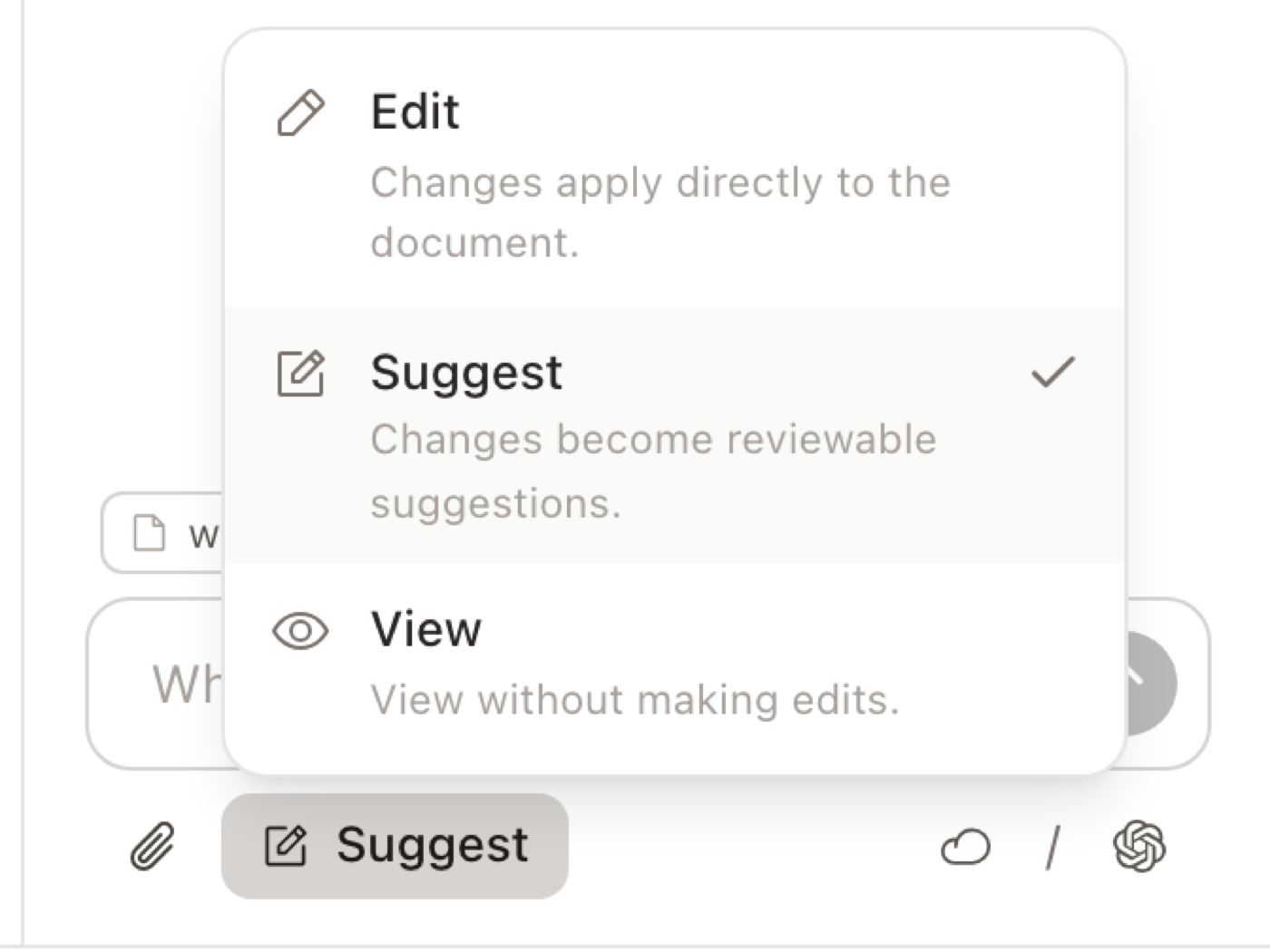
Markdown documents have three modes in the control at the top: Edit (the default), Suggest, and View. Code and LaTeX files offer Edit and Suggest. Chats have the same control next to the composer, and they mean the same thing for the agent:
- Suggest (the default for agents): every write is a tracked change you accept or reject.
- Edit: changes are applied directly. Use it when you trust the task and want speed.
- View: the agent's write tools are removed, not just discouraged. It can only read and answer.
Suggestions wait for you
An agent in Suggest mode, or a collaborator with the Commenter role, never changes final text. Their edits appear as tracked insertions and deletions with the author's avatar on each one.
Hover a suggestion to accept or reject it. Accept all and Reject all are in the bar at the bottom of the document.
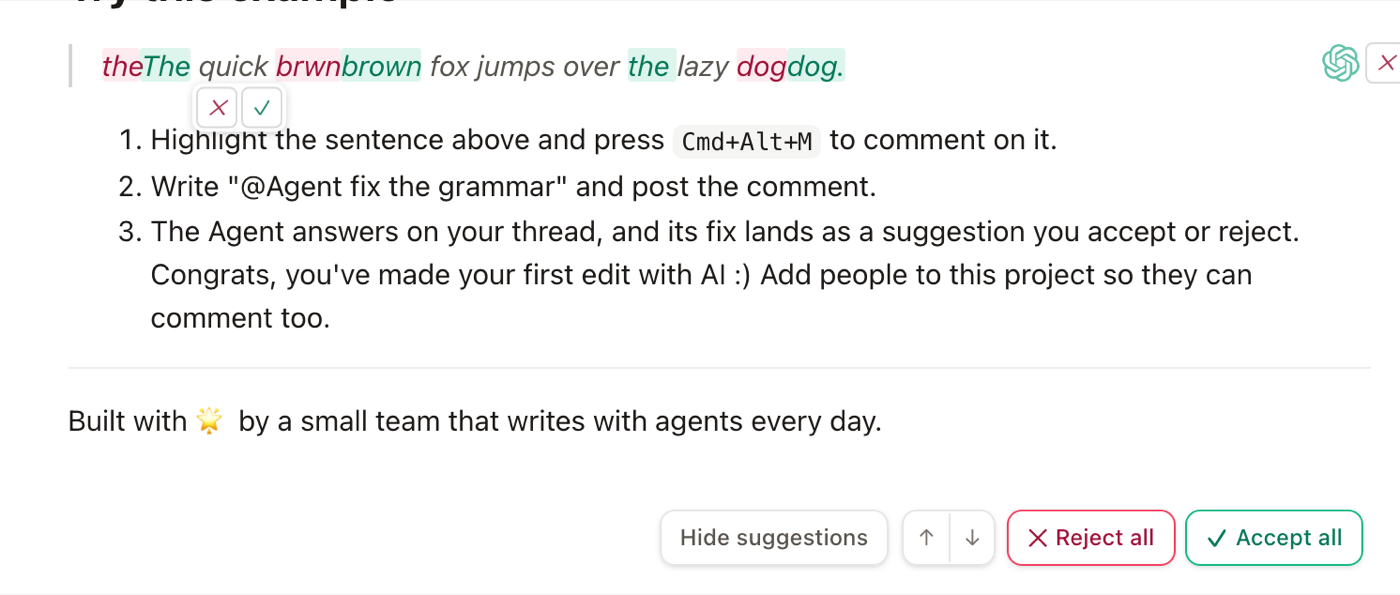
Preview accepted, in that same bar, reads the document as it would stand if every pending suggestion were accepted, without accepting any of them. Toggle it again to bring the markup back.
The Review panel collects pending changes across the whole project so you can work through them in one pass. Filter by file, chat, or author (Sundial Agent, local agents, you and other people), or checkpoints only. The same panel is the History section of the sidebar.
See who wrote each line
Show authorship, in the formatting toolbar, colors each line by who wrote it, human or agent. Hover a colored line for its card and open the chat turn from there.
Go back to any point
History is kept per edit, not per commit. Scrub through the timeline of a file, or compare any two points. Restore an earlier state. The restore is itself an edit, so nothing is lost.
Name any point in the timeline as a checkpoint, such as "sent to reviewers". Agents can add checkpoints too.
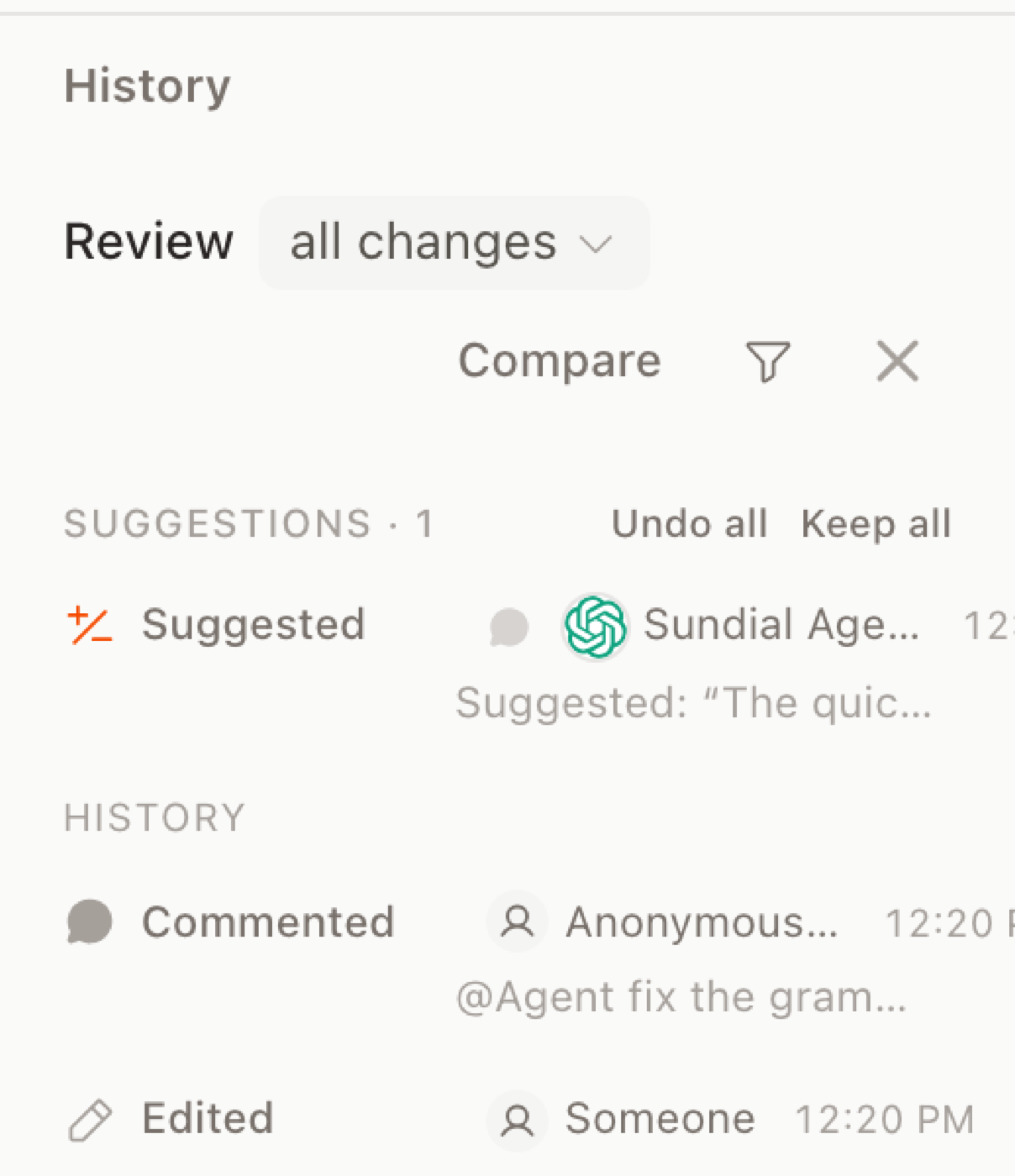
Each message from the agent that edited files carries a diff button. It opens exactly what that turn inserted and deleted, across every file it touched, as its own view.
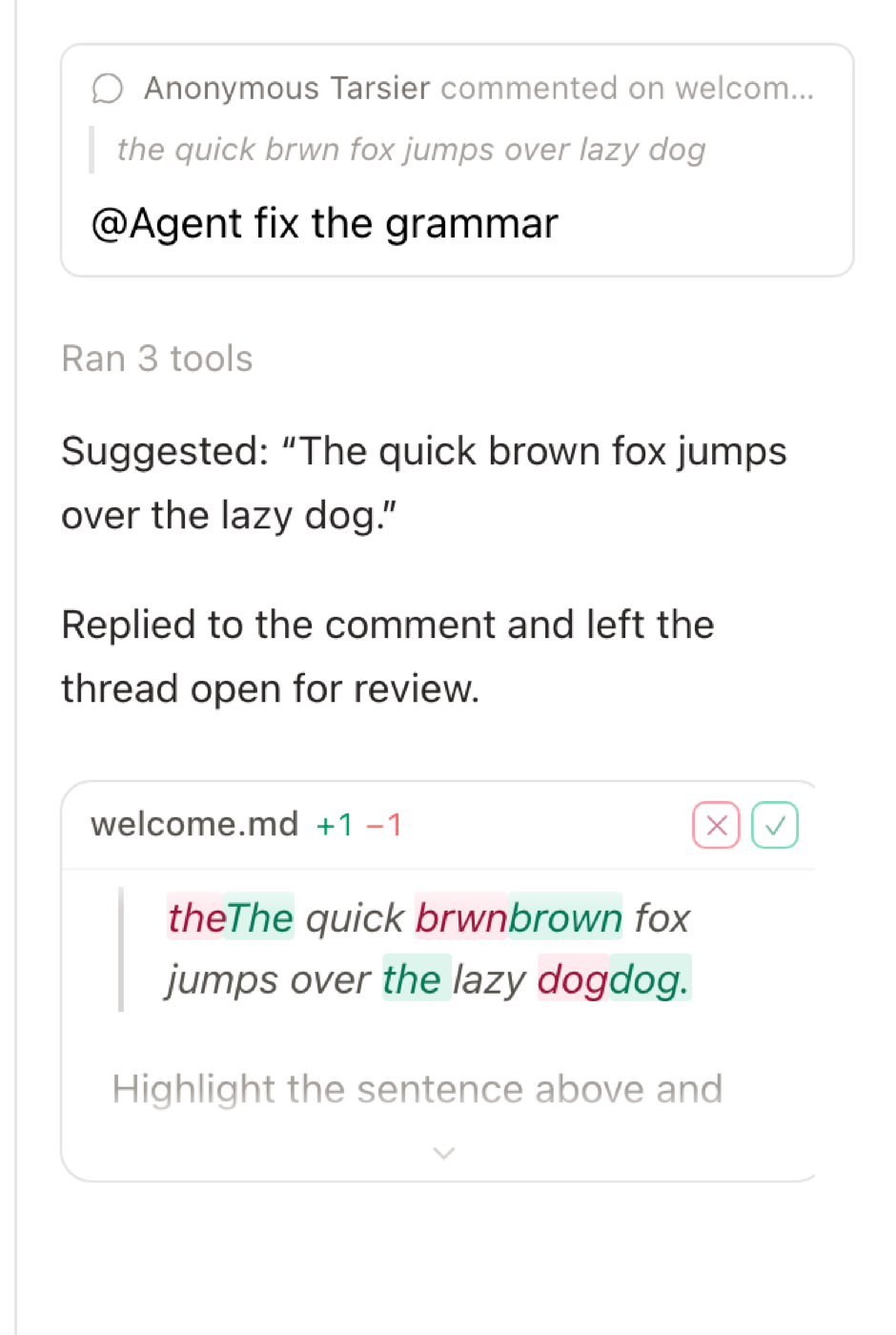
To undo agent work, reject the suggestion, or if the chat was in Edit mode, open the turn's diff from the diff button on its message, or restore from History. Cmd+Z only undoes your own typing, so a collaborator's or agent's change never disappears from under you.
Inline AI runs on Sundial's servers
Inline AI runs on Sundial's servers, also in a local project. It needs a Sundial account, spends credits, and sends the passage you selected plus the paragraphs around it. Sundial keeps the passage, the paragraphs around it, the variants it produced, and which one you chose. Claude Code and Codex are not used for inline AI; for an edit that never leaves your machine, ask them in a chat or a comment.
- Type
/aifollowed by an instruction to edit in place. - Select text and press
Cmd+Gfor rewrite variants; pick one with a number key.
Autocomplete, page setup, Vim
Autocomplete is off by default. Settings → Advanced turns it on as AI (a model, spends credits) or Deterministic (from the document itself). Tab accepts.
Page setup in the formatting toolbar sets narrow, normal or wide margins and turns the header and footer on or off.
Vim mode, for code and LaTeX files, is under Settings → Shortcuts.